Getting started in the Mozilla Festival Discord Server
What is Discord?
Discord is a platform that allows for on-line community and conveinings using chat, voice, video, and more. Many organizations and groups use Discord to build connections across the globe. It’s an upgrade from the former Mozilla Festival Community Slack used previously, having some additional features and enhancements to allow our community to grow.
Discord is your main hub for communicating with Mozilla Festival Wranglers, Volunteers, Staff, and the greater community as a whole.
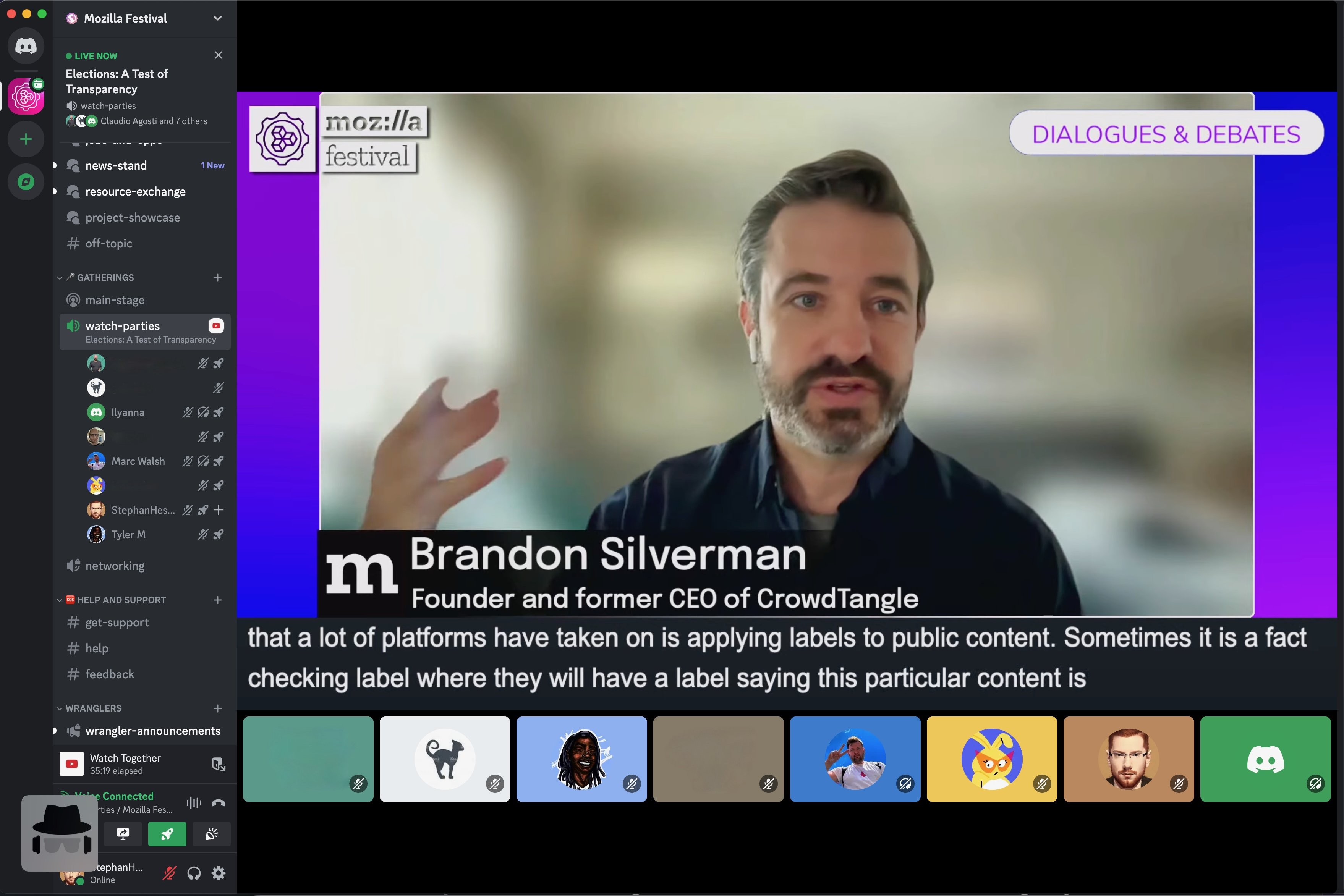
How do I join the Mozilla Festival community on Discord?
What's a Discord Server?
Each community has it's own Discord "Server" which houses those conversations and connections. The Mozilla Festival Discord server is managed by the Mozilla Festival Team and under the umbrella of our Community Participation Guidelines.
🔗 Just click the invitation link HERE to get started!
👤 You’ll be asked to create a Discord username - keep in mind that this is your identity within the community. After doing so you can enter in your email address and create a password, and finally you’ll need to confirm your date of birth and agree to our community terms Server rules.
💡Pro Tip: Discord is accessible via the browser, on mobile, and via a desktop app. For the best possible experience we'd recommend using the standalone Discord desktop application of Mac or Windows - particularly if you are facilitating or participating in a MozFest Virtual Gathering on Discord. You can download the Discord desktop app from HERE.
Navigating within the Discord app
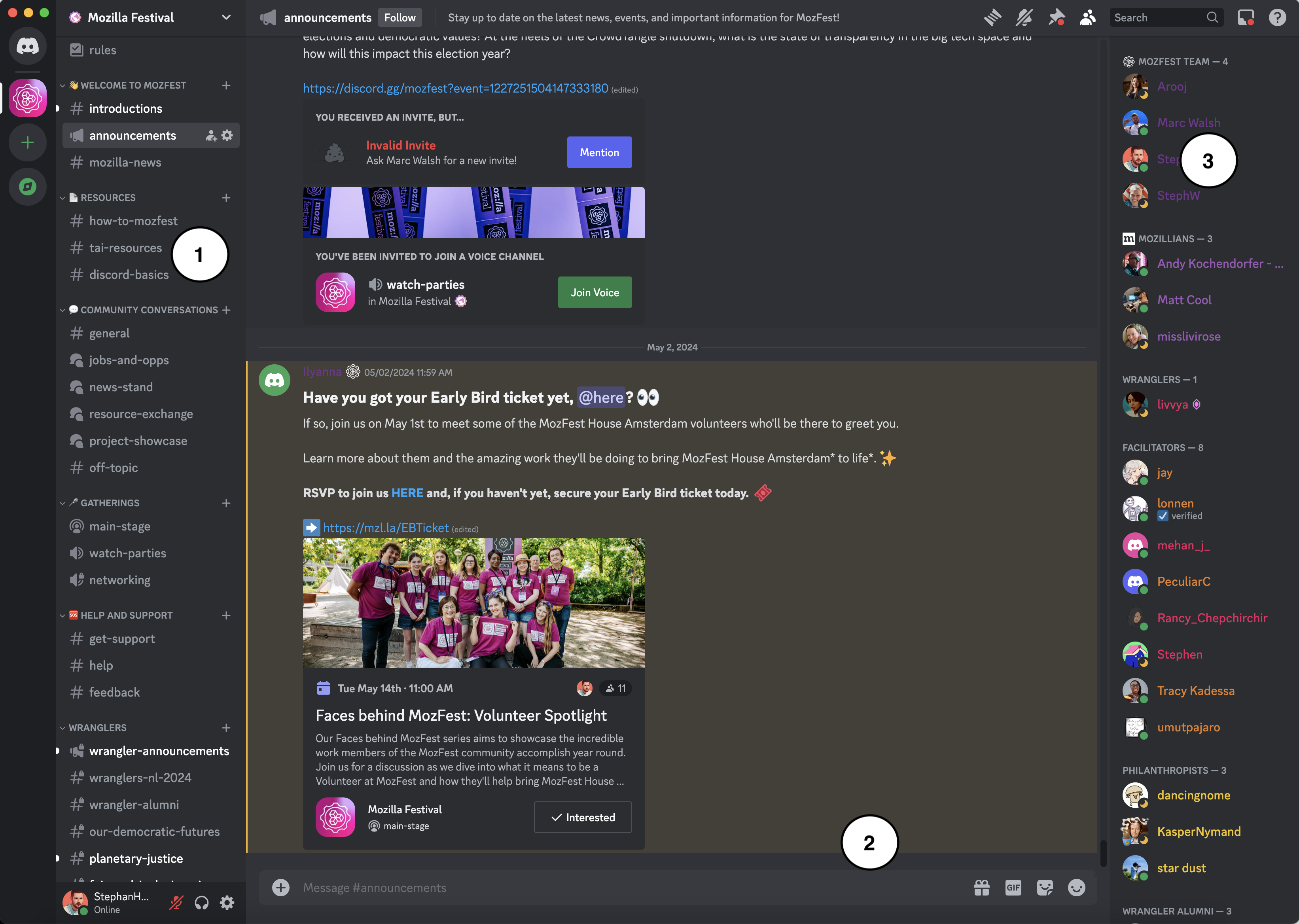
1️⃣ There are three main navigation pains within Discord, along the left hand side you’ll see the various channels and spaces where conversation take place.
2️⃣ After clicking any of these channels you’ll see the conversation history and can post new messages, and by hovering over any post you’ll see options to add emojis and reactions, and share GIFs or other media.
3️⃣ Along the right hand side you’ll see a list of users who are present in the channel you are viewing.
👋 After joining, hop in the #introductions channel to say “Hello”! You can also check out the #discord-basics channel for tips and tricks as you get started.
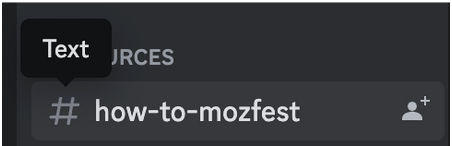
Text Channel: send messages, pictures, GIFs, and emojis


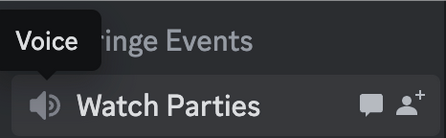
Voice Channel: Gather and communicate through voice calls, video calls, and screen sharing
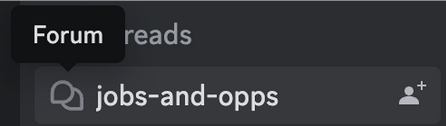
Forum Channel: Create an organized environment for discussions
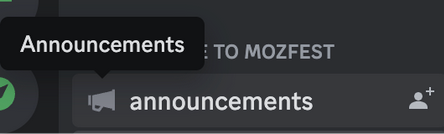
Announcement Channel: Publish important updates about the server
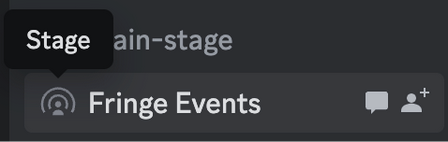
Stage Channel: Host events, expert panels, and Q&A sessions for listeners
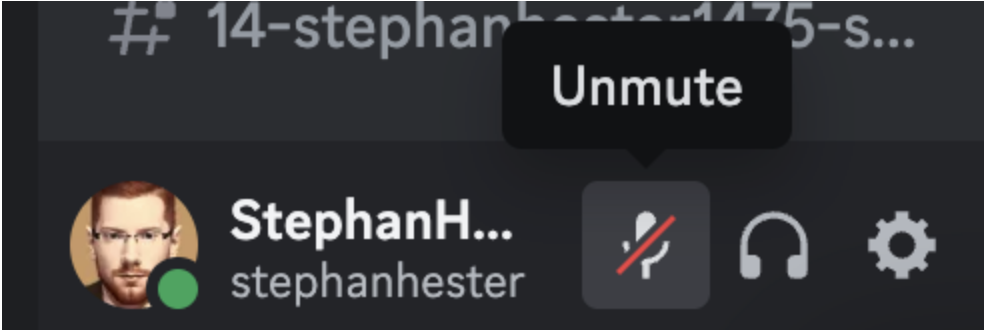
Muting and Unmuting
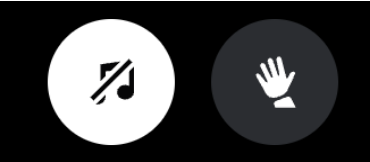
In the bottom left-hand corner of your screen you'll see three important buttons. The first button is shaped like a microphone and allows you to mute or unmute yourself.
Pro Tip: You can only speak in certain channels, so if you were to unmute in a text only channel no one will hear you. You'll want to double check that you are in a Voice or Stage channel before unmuting.
Raising your hand to speak
Say you're in the audience of an engaging MozFest Virtual Gathering hosted in Discord, the speaker has asked for any question, and you'd love to verbalize - what now?
When participating in Stage and Voice channels you can click the "Raise Hand" button to indicate you have a question or would like to speak. The speaker or moderator can then invite you "up to the stage" where you can participate further.
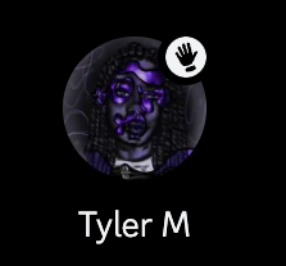
You'll see a small hand icon over your profile so everyone can see that you would like to participate.
You'll see a small hand icon over your profile so everyone can see that you would like to participate.
Sending a DM to someone new
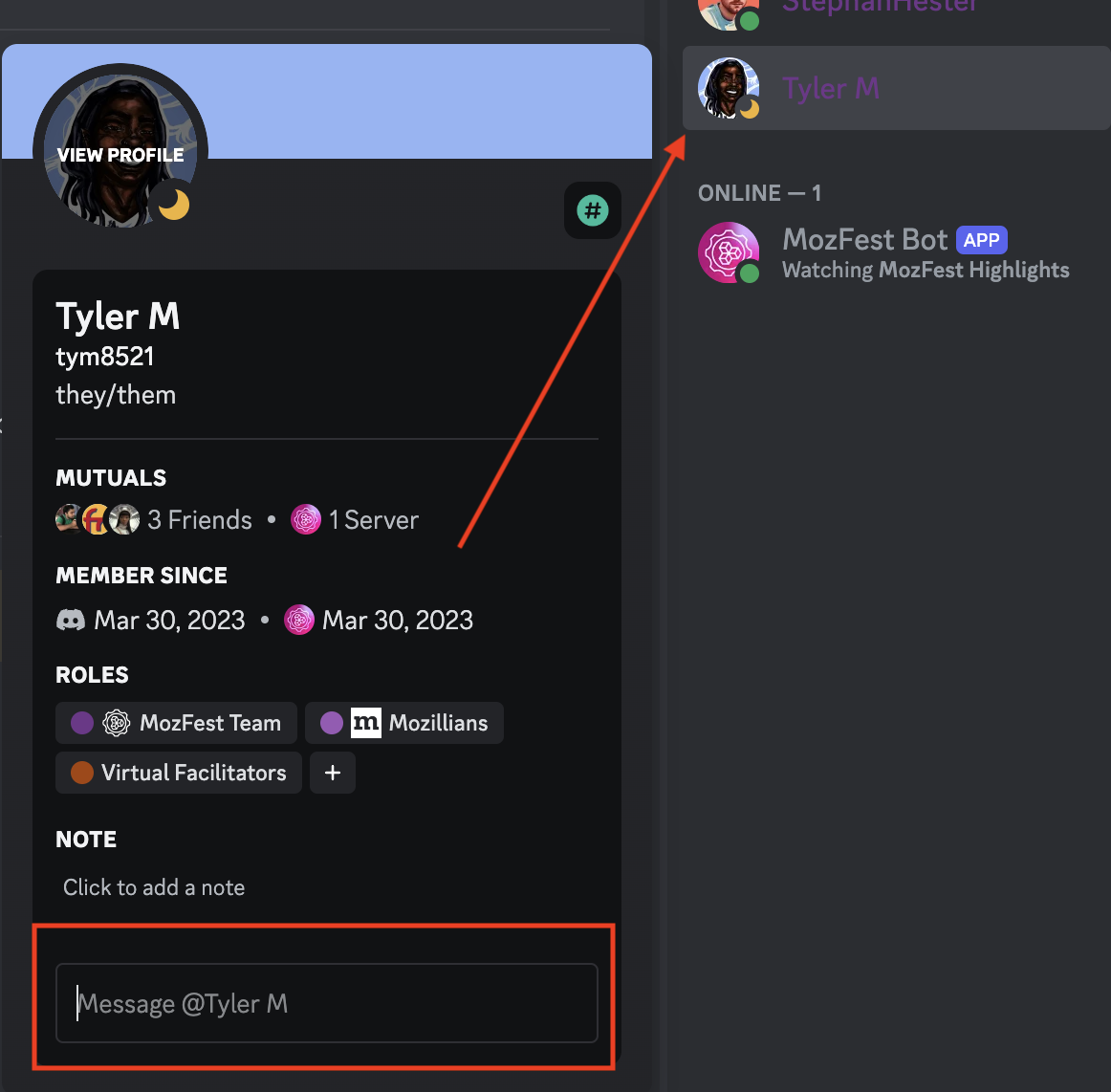
First you'll need to locate the person in question. You can hover over their name if you see any messages from them in open channels, you can scroll along the right-hand side until you see their user name in the member list, or you can use the search function to search by their user name.
Next, you'll want to input your message into the "Message @screenname" field at the bottom of their profile.
🚨 Important Note: Use of the MozFest Discord is governed by the Mozilla Community Participation Guidelines - please make sure that your helping do your part to keep our community safe, inclusive, and positive community for all.
Once your message is sent, that person will receive a message invitation where they can choose to respond and chat with you further if desired.

Not sure where to start? Have further questions? Feel free to reach out in the #Help channel in Discord with any questions.